QR codes went from novelty to infrastructure in about three years. Restaurant menus, event tickets, WiFi access, product packaging, conference badges and invoice payments all run on them now. They are also easy to get wrong in ways you only discover after printing.
Here is what we have learned building and using the QR Code Generator: which content types to use, how to size and place codes, and a testing routine that catches problems before they reach the printer.
Key takeaways
- Encode the right type of content. A WiFi QR code joins the network in one tap; a QR code containing the password as plain text does not.
- Shorter content means a simpler code, and a simpler code scans from further away and survives worse printing.
- Static QR codes never expire and need no account. They cannot be edited after printing, so link to a URL you control.
- Print at a minimum of 2 cm (0.8 in) per side for close-range scanning, and test with the oldest phone you can find.
Pick the right content type
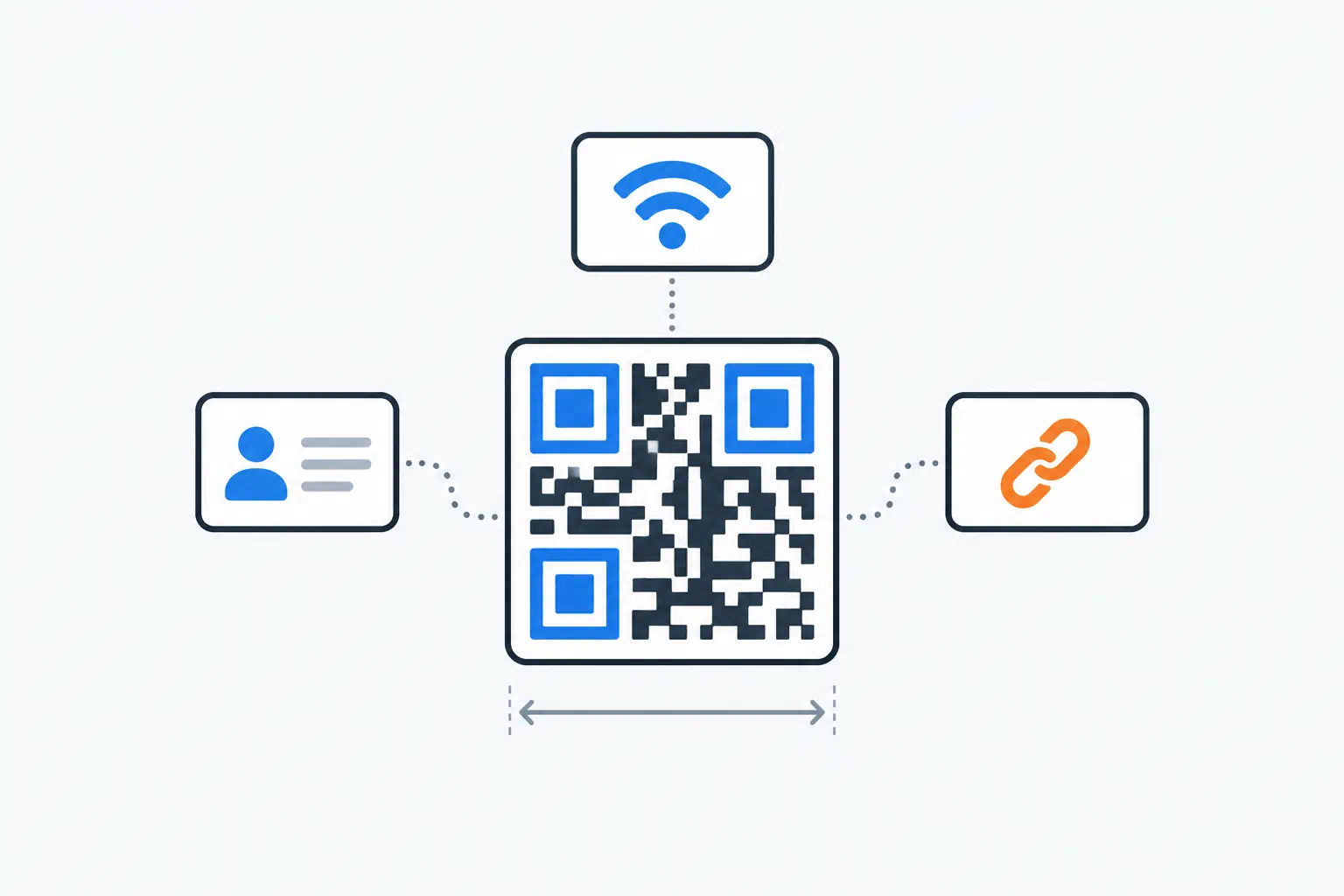
A QR code is just text. What makes it useful is that phones recognise certain text formats and act on them automatically. The generator offers these:
URL. The default. Opens the page in the browser. Use https://, keep it short, and if you want to measure scans, add UTM parameters (?utm_source=menu&utm_medium=qr) so the visit shows up in your analytics.
WiFi. Encodes the network name, password and security type. The phone shows a "Join network" prompt. This is the single most appreciated QR code you can put in an office, café or guest room, and it means you can finally use a long password.
vCard. A contact card: name, phone, email, company, address. Scanning offers to save the contact. Put it on business cards and email signatures. Keep it to the fields that matter; every extra field makes the code denser.
Email. Pre-fills recipient, subject and body. Good for "report a problem with this machine" labels, where the subject line can include the asset number.
Plain text. Shows the text on screen. Use it for serial numbers, short instructions or anything that should not open an app.
The mistake we see most often is putting a WiFi password in a plain text code, or a phone number in a URL code. The content is there, but the phone does not know what to do with it.
Static versus dynamic codes
The generator makes static codes: the content is encoded directly in the image. That has two consequences worth understanding.
They never expire. No subscription, no service that might shut down, no "this QR code has been deactivated" page. A static code printed on a 2026 brochure will still work in 2036.
They cannot be edited. If the URL changes, the code is wrong. The workaround is simple: point the code at a URL on your own domain (yourcompany.com/menu), and redirect that URL wherever you need. You keep control without a QR service in the middle.
Dynamic QR services solve the editing problem by routing every scan through their server. That gives you scan statistics, at the cost of a dependency and usually a monthly fee. For most business uses, a static code plus a redirect you control is the better trade.
Keep the content short
Every character you add makes the code denser: more, smaller modules in the same space. Dense codes need to be printed larger and scanned from closer.
- A 25-character URL produces a 25×25 module code.
- A 120-character URL with tracking parameters produces around 45×45.
- A vCard with every field filled can hit 80×80, which is hard to scan on a business card.
Practical rules: use a short URL on your own domain, keep vCards to name, one phone, one email and the company, and never encode a URL with a session token in it.
Error correction: the setting that saves bad prints
QR codes include redundancy so they still scan when part of the code is damaged or covered. There are four levels: L (7% recoverable), M (15%), Q (25%) and H (30%).
Higher correction makes the code denser, so it is a trade-off. Our defaults:
- M for screens and clean print.
- Q or H for anything outdoors, on packaging that gets scuffed, or when you are placing a logo in the centre of the code.
If you put a logo over the middle, you are deliberately destroying part of the code and relying on error correction to recover it. Keep the logo under 20% of the area and use level H.
Size and placement for print
| Scan distance | Minimum code size |
|---|---|
| Hand-held (menu, card, label) | 2 cm / 0.8 in |
| Tabletop sign, counter display | 4 cm / 1.5 in |
| Poster read from 1–2 m | 10 cm / 4 in |
| Banner or vehicle | 25 cm+ / 10 in+ |
A rough rule is code size equals scanning distance divided by 10.
Also:
- Leave a quiet zone, a blank margin around the code at least four modules wide. Codes crammed against a border or text fail more than any other cause.
- Dark code on a light background. Inverted codes (white on black) scan on modern phones but fail on older ones. Low-contrast brand colours are a gamble.
- Avoid printing on glossy, curved or reflective surfaces. A code wrapped around a bottle loses its shape.
- Export as SVG for print so it stays sharp at any size. Use PNG for screens, documents and email.
Always add a call to action
A bare QR code gets ignored. "Scan for menu", "Scan to join WiFi", "Scan to save contact" roughly doubles scans in our experience. People need to know why they would bother.
Test before you print in volume
- Generate the code and download it.
- Scan it with an iPhone camera, an Android camera and a third-party scanner app. Confirm it does what you expect (joins the network, opens the page, offers to save the contact).
- Print one copy at the real size on the real material, and scan that. Office printers at draft quality blur fine modules.
- Scan the printed copy under the lighting it will live in, from the distance people will actually be at.
- Only then order the run.
Five minutes of testing has saved more than one reprint.
Frequently asked questions
Do QR codes made with the generator expire?
No. They are static: the content lives inside the image, so the code works for as long as the content it points to exists. There is no account and no service that can switch it off.
Can I change the URL after printing?
Not in the code itself. Point the code at a URL on your own domain and change the redirect behind that URL instead.
Which file format should I download?
SVG for anything that will be printed, because it scales without blurring. PNG for websites, slides, email signatures and documents.
Is a WiFi QR code secure?
The password is encoded in plain text inside the code, so anyone who can scan it can read it. Treat the printed code the same way you would treat the password written on a card: fine for a guest network, not for the network your file server sits on.
Tools used in this guide
- QR Code Generator
- SEO URL Slug Generator for short, clean redirect URLs
- SVG Optimizer for trimming exported SVG codes before sending to print