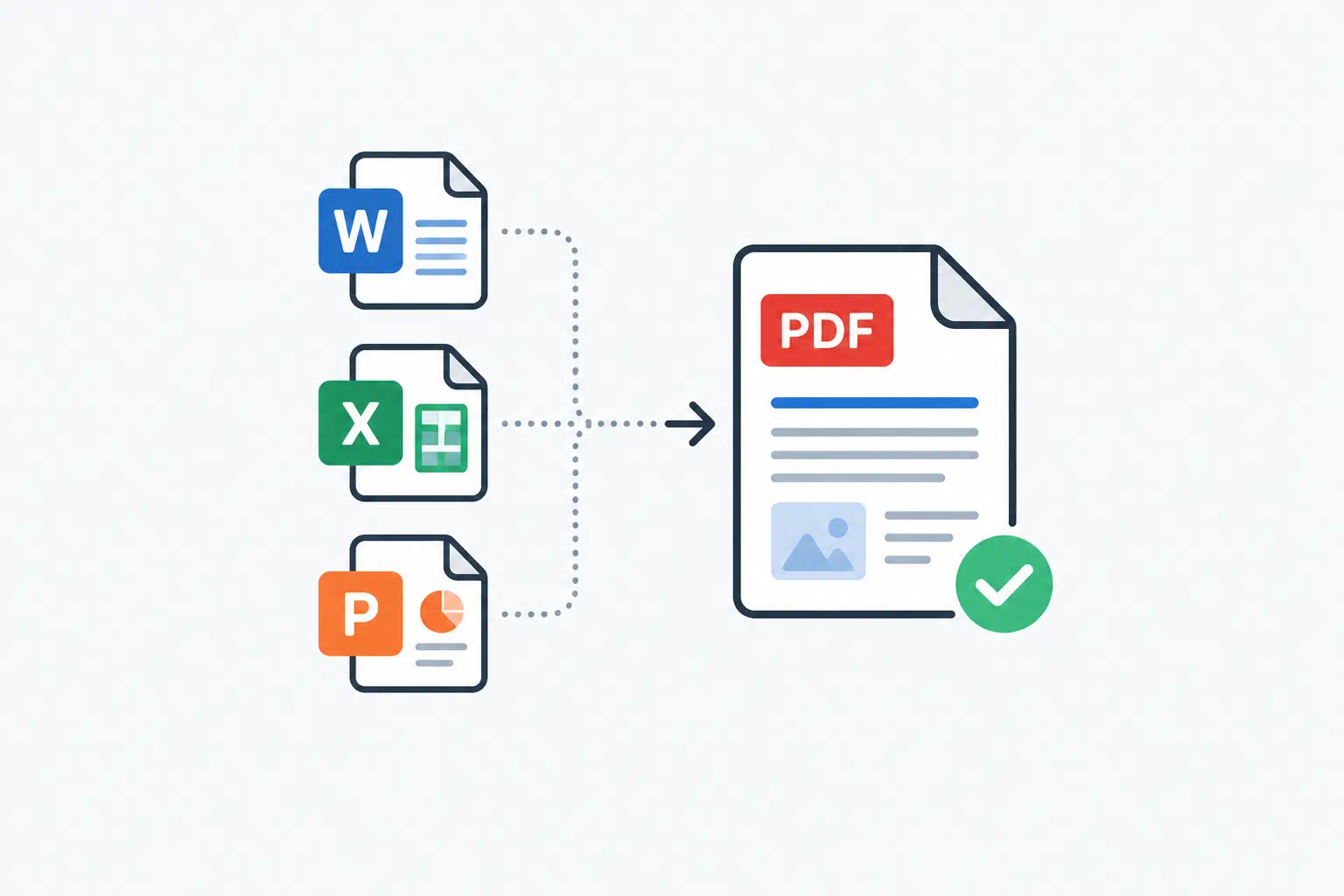
Most PDF conversion problems are not caused by the converter. They are caused by the source file. A Word document that relies on a font only installed on your laptop, a spreadsheet with print areas nobody ever set, or a slide deck with embedded video will all come out wrong, no matter which tool you use.
This guide covers what actually goes wrong when Office files become PDFs, how to fix it at the source, and how to run the conversion online in under a minute.
Key takeaways
- PDF locks in layout, but it can only use the fonts, page sizes and print settings that already exist in the file.
- Word problems are almost always fonts and section breaks. Excel problems are almost always print areas and page scaling. PowerPoint problems are usually embedded media and off-slide objects.
- Five minutes of preparation before converting saves an hour of fixing afterwards.
- The Word to PDF, Excel to PDF and PowerPoint to PDF tools on ToolByte accept files up to 50 MB, add no watermark and delete the upload after conversion.
Why the PDF looks different from the original
A PDF describes exactly where every character and image sits on a page. An Office document does not. Word, Excel and PowerPoint recompute the layout every time the file opens, using whatever fonts, printer settings and screen size are available on that machine.
Conversion is the moment that recomputation happens for the last time. If anything the document depends on is missing at that moment, the converter substitutes what it has. That is where the surprises come from:
- Missing fonts are replaced with a metrically similar font. Line lengths change, so paragraphs reflow and page breaks move.
- Printer-dependent page sizes fall back to the default, usually A4 or Letter. A document set up for one and converted on the other gains or loses a few lines per page.
- Linked images that point at a file path on your computer are not in the document. They convert as empty boxes.
- Tracked changes and comments are often rendered if they are still visible in the file.
None of these are bugs in the converter. They are decisions the converter has to make because the file did not make them.
Preparing a Word document
Work through these before you convert a .docx, .doc, .odt or .rtf file.
- Embed or standardise fonts. If you used a brand font, either embed it (File → Options → Save → Embed fonts in the file) or switch body text to a widely available font like Arial, Calibri or Georgia. Decorative fonts in headings are the most common cause of reflow.
- Accept or reject tracked changes and delete comments you do not want in the PDF.
- Check section breaks. A stray "Next page" section break produces a blank page in the PDF. Turn on formatting marks (Ctrl+Shift+8) and look for them.
- Replace linked images with embedded ones. Insert → Pictures embeds by default; the problem only appears with images pasted from network drives or inserted with "Link to file".
- Update fields. Tables of contents, cross-references and page numbers are fields. Select all (Ctrl+A) and press F9 so the PDF does not say "Error! Bookmark not defined".
Then upload the file to the Word to PDF converter and download the result. The conversion uses a full office engine rather than a simplified renderer, so tables, headers and footers and multi-column layouts come through intact.
Preparing an Excel workbook
Spreadsheets are the hardest case because Excel has no concept of a page until you print. Three settings decide everything:
Print area. If none is set, the converter exports every cell that has ever contained data, including that one note you left in cell AZ400. Select the range you want and use Page Layout → Print Area → Set Print Area on each sheet.
Page scaling. Page Layout → Scale to Fit lets you force a wide table onto one page width. "Fit all columns on one page" with the height left automatic is the setting that produces readable PDFs most often.
Orientation. Wide financial tables belong in landscape. Set it per sheet; it is not a workbook-wide setting.
Also hide helper columns and gridlines you do not want printed, and freeze panes do not carry over (they are a screen feature, not a print feature), so repeat header rows with Page Layout → Print Titles instead.
The Excel to PDF tool handles .xlsx, .xls, .ods and .csv. For CSV files there is no layout to preserve, so you get a clean table at default scaling, which is usually what you want.
Preparing a PowerPoint deck
Slides convert well because each slide is already a fixed-size canvas. The issues are around the edges:
- Objects placed off the slide (designers park spare images there) are not rendered, which is fine, but objects that overlap the edge are cropped.
- Embedded video and audio become a static poster frame. If the video matters, add a link to it on the slide.
- Animations collapse to their final state. A slide that builds five bullet points one at a time will show all five. If you need the build, duplicate the slide and delete bullets on each copy before converting.
- Speaker notes are not included. Export notes pages from PowerPoint separately if you need them.
Upload the .pptx, .ppt or .odp file to the PowerPoint to PDF converter and each slide becomes one page at the slide's own aspect ratio.
Converting HTML to PDF
If the source is a web page or an HTML template (an invoice, a report generated by an app), the rules are different. The HTML to PDF tool renders pasted HTML with inline CSS. It is built for documents, not for pixel-perfect copies of modern web layouts:
- Use tables and simple block layout. Flexbox and grid are not supported.
- Put CSS inside a
<style>block or inline styles. External stylesheets and JavaScript are not fetched. - Set page breaks explicitly with
page-break-before: alwayswhere you want a new page.
For a one-off copy of a live web page, your browser's Print → Save as PDF is a better fit. The HTML to PDF converter shines when you are generating the same document repeatedly from a template.
After converting: check these four things
- Page count matches what you expected.
- The first and last page look right (that is where header, footer and section problems show up).
- Any table that spans pages repeats its header row.
- Links still work. Word hyperlinks survive conversion; text that merely looks like a link does not become clickable.
If the file is going to be emailed, run it through the PDF Compressor as well. Office exports frequently embed full-resolution images and a 40 MB PDF of a 12-page report is common.
Frequently asked questions
Does converting to PDF reduce quality?
Text stays vector and is as sharp as the original. Images are embedded at the resolution stored in the Office file. If the images in your document look soft, they were already compressed by Word or PowerPoint when you inserted them.
Can I convert a password-protected Word file?
No. Remove the password in Word first, convert, then protect the PDF with the PDF Password tool if you still need it locked.
Why does my converted spreadsheet have 40 pages?
Because no print area was set and Excel's used range was larger than the visible table. Set the print area and scale to fit one page wide, then convert again.
Is there a file size limit?
Each of the Office converters on ToolByte accepts files up to 50 MB. The upload is deleted automatically after the PDF is generated.