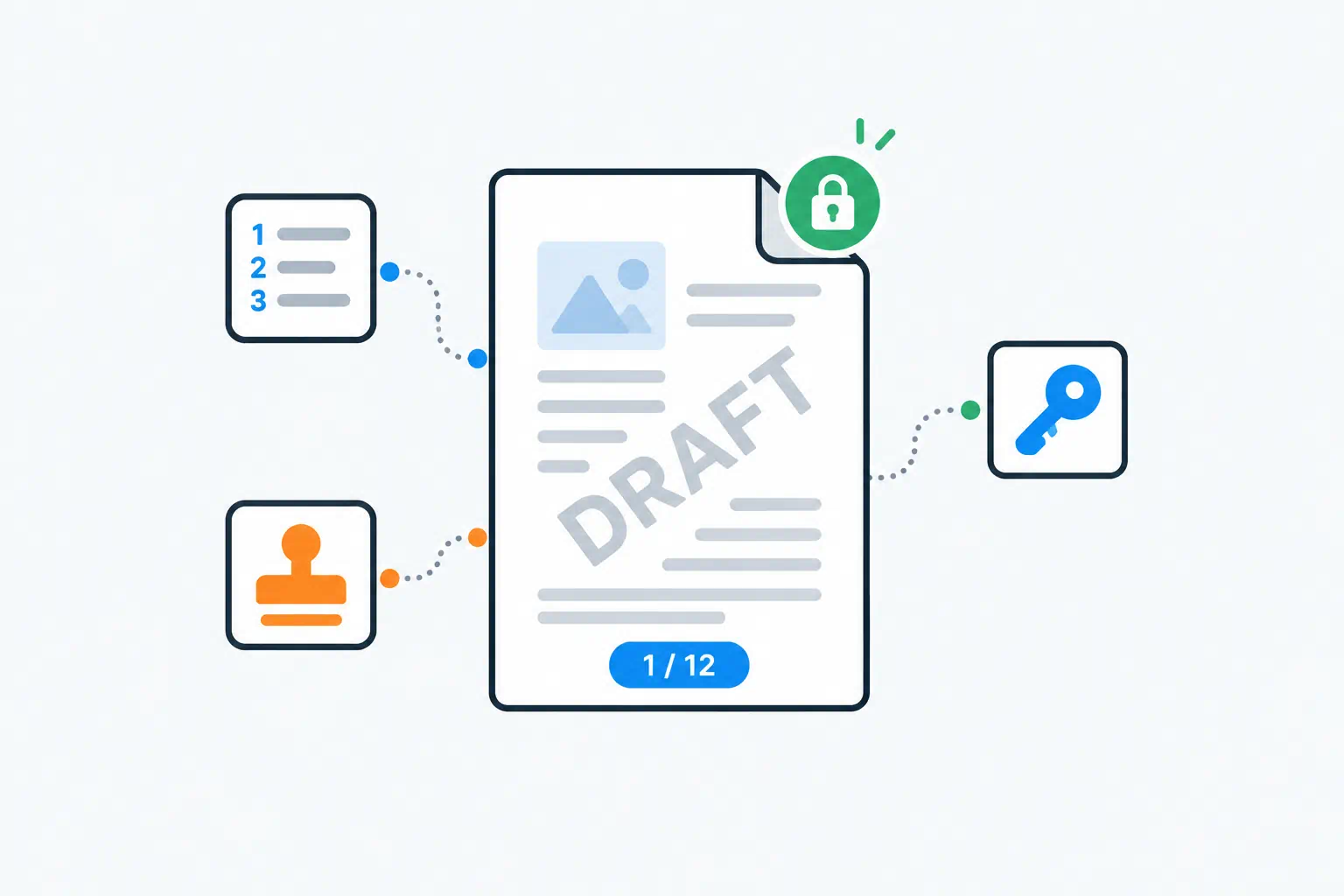
Producing the content of a document is the hard part. The finishing steps are easy, which is why they get skipped, and why so many proposals go out with no page numbers, drafts get mistaken for finals, and "confidential" files circulate with nothing marking them as such.
This is the checklist we run before a PDF leaves the building, with the reasoning behind each step and the tool that does it.
Key takeaways
- Page numbers belong on anything over two pages that might be printed or discussed. "See page 7" only works if there is a 7.
- A watermark communicates status (DRAFT, SAMPLE, CONFIDENTIAL) to honest readers. It is not protection; the password is.
- Fill forms before flattening, flatten before sending, and never send a fillable form if you do not want it edited.
- A PDF password is only as strong as the password and the channel you send it through. Send the password separately.
Step 1: Page numbers
Add them last, after merging and after any page is inserted or removed, or the numbering will be wrong by the time anyone reads it.
The Page Numbers tool stamps numbers on every page with a live preview. Decisions to make:
- Position. Bottom centre is the convention for reports; bottom right for anything bound on the left, so the number is visible while flipping. Top right for legal documents.
- Format.
1,Page 1,1 of 24,1 / 24. The "of N" form is the most useful when pages might be printed and separated: a reader holding page 9 knows whether there are more. - Font size. 9–11 pt. Numbers should be findable, not prominent.
- Starting number. If the document has a cover page, you may want numbering to start at the second page or to start from 0. Check what the tool offers and match the table of contents if there is one.
A mistake we see often: numbering a document, then merging it after another document, so the combined file reads 1, 2, 3, 1, 2. Merge with the PDF Merger first, number the merged file once.
Step 2: Watermarks
A watermark is a message to the reader about what they are holding. Common ones:
| Watermark | When |
|---|---|
| DRAFT | Anything not yet approved. Stops a draft being treated as final. |
| CONFIDENTIAL | Contracts, financials, HR documents. Sets expectations, supports a later complaint. |
| SAMPLE / NOT FOR DISTRIBUTION | Previews, portfolio pieces, review copies. |
| Recipient name or company | Proposals and pre-release material. Discourages forwarding because the leak is traceable. |
| Date | Versioned documents where the date matters more than a version number. |
The PDF Watermark tool adds text across every page, diagonal or horizontal, with opacity, size and rotation controls and presets for the common labels.
Settings that work: 30–40% opacity, diagonal, large enough to span most of the page. A watermark that is too subtle is not read; one that is too dark makes the document unpleasant to read, and the recipient will ask for a clean copy.
Order matters here too: watermark after page numbers so the number is not obscured, and before applying a password, because an encrypted file cannot be modified.
Step 3: Forms
Two situations.
You received a form to fill in. Open it in the PDF Form Filler. It detects the fields (text, checkboxes, radio buttons, dropdowns), lets you fill them, and saves the result. Fill it, download it, and if you do not want the recipient changing your answers, flatten it.
You are sending a form to be filled in. Send the fillable version, obviously, and do not watermark over the fields or password it with a permissions password that blocks form filling.
Flattening converts the form fields into ordinary page content: the values stay visible but can no longer be edited. It is the right final state for any completed form you are submitting or archiving. It also removes the risk of a field's value differing from its appearance, which is a real problem with forms filled in some viewers.
For documents that need a signature or an annotation rather than a form field, the PDF Editor handles adding text, drawing and signatures directly on the page.
Step 4: Passwords
There are two kinds, and most people use the wrong one.
An open password (user password) encrypts the file. Without the password it cannot be opened, in any viewer. This is the one that protects content.
A permissions password (owner password) leaves the file openable but asks viewers to restrict printing, copying or editing. Many viewers ignore these restrictions entirely, and the restrictions are removed by any tool that can re-save the file. Treat a permissions password as a polite request, not a control.
The PDF Password tool applies an open password. Guidance:
- Use a strong password. The encryption is only as good as the password; a six-character word is cracked offline in minutes. The Password Generator makes a long random one.
- Send the password through a different channel than the file. Email the PDF, text the password. A password in the same email as the attachment protects against nothing.
- Keep an unencrypted copy somewhere safe. If the password is lost, the content is gone.
- Apply the password last. Every other step needs to modify the file, and an encrypted file cannot be modified without removing the password first.
When you need to edit a protected file you own, the Remove PDF Password tool strips the encryption, given the password.
The full sequence
- Assemble: merge, reorder, rotate any landscape pages, remove blanks.
- Fill any forms; flatten if they should not be editable.
- Compress if the file is over a few MB and will be emailed.
- Add page numbers.
- Add a watermark if the status or audience calls for one.
- Apply a password if the content is sensitive.
- Open the final file and check the first, last and one middle page.
The whole sequence takes under five minutes once you have done it twice.
Frequently asked questions
Can I add page numbers to only some pages?
Most tools number every page. If you need to skip a cover, number the body separately and merge the cover on afterwards, or accept that the cover is page 1 and start the body at page 2.
Can a watermark be removed?
A text watermark added by a tool is a layer on the page and can be removed by someone with a PDF editor and some patience. It marks status; it does not prevent copying. For protection, use an open password.
Is a password-protected PDF safe to email?
The file is encrypted and cannot be read without the password. The weak points are the password's strength and how you share it. Long random password, sent separately, and it is as safe as email gets.
What is the file size limit?
Each PDF tool on ToolByte accepts files up to 50 MB. Uploaded files are deleted automatically after processing.