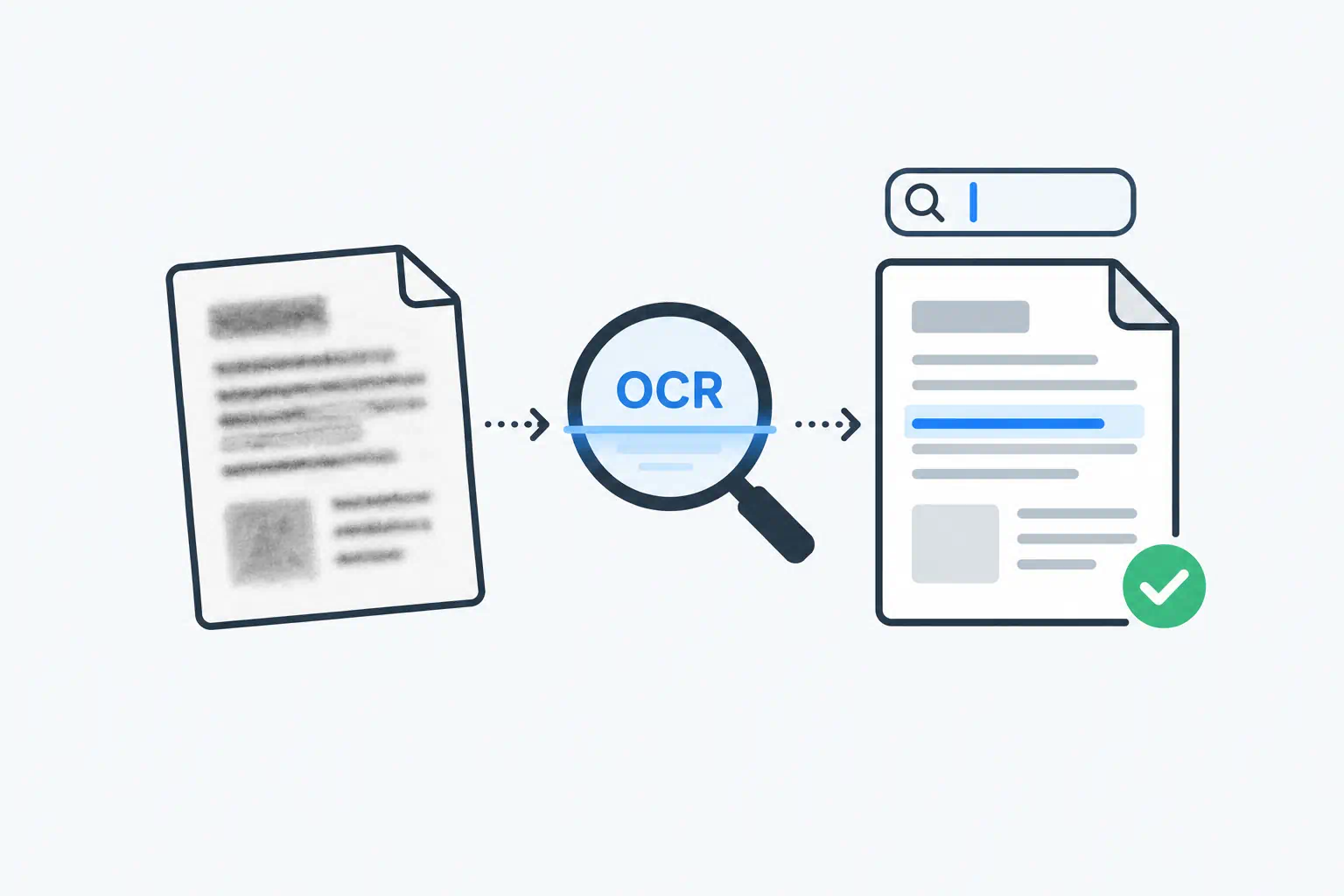
A scanned PDF is a photograph of paper. You can read it, but your computer cannot. Searching inside it finds nothing, copying text gives you nothing, and screen readers skip it entirely. OCR (optical character recognition) fixes that by reading the picture and writing the words back into the file as real, selectable text.
This article explains how to get accurate results, what the common failure modes look like, and when you need something more than plain OCR.
Key takeaways
- A "searchable PDF" keeps the scanned image and adds an invisible text layer underneath. The page looks identical; the text becomes selectable and searchable.
- Scan quality decides OCR quality. 300 DPI, straight pages and good contrast matter more than any software setting.
- Set the language. The recogniser uses a dictionary, and the wrong dictionary turns correct words into wrong ones.
- If the PDF already contains text (it was exported from Word, for example), you do not need OCR. Use text extraction instead.
First, check whether you need OCR at all
Open the PDF and try to select a line of text with your mouse. If a highlight appears over individual words, the PDF already has a text layer and OCR will only make it worse. Use the PDF to Text extractor to pull the text out directly.
If dragging selects a whole rectangle of the page as an image, or nothing at all, it is a scan. OCR is the right tool.
Mixed documents exist too: a contract exported from Word with a scanned signature page appended. OCR handles those fine, because it adds a text layer only where none exists.
How OCR works, briefly
The recogniser does four things to each page:
- Cleans the image: straightens it, removes speckles and converts it to black and white.
- Finds the layout: columns, paragraphs, lines, then individual characters.
- Recognises characters by comparing shapes to trained models.
- Corrects with a dictionary for the language you selected, so "tbe" becomes "the".
Step 4 is why language matters. English dictionary correction applied to a German invoice "fixes" words that were already right.
The OCR PDF tool uses the Tesseract engine, which is the same open-source recogniser behind many commercial products. It outputs a searchable PDF: the original scan stays visible, and the recognised text sits underneath it.
Scanning for accuracy
If you control the scan, you control most of the outcome.
| Setting | Recommendation | Why |
|---|---|---|
| Resolution | 300 DPI (400 for small print) | Below 200 DPI, letters lose their shape. Above 400 adds size, not accuracy. |
| Colour mode | Greyscale or black and white | Colour scans are larger and give the recogniser nothing extra for plain text. |
| Alignment | Use the feeder, not the glass, for multi-page docs | A page skewed by 3° already drops accuracy noticeably. |
| Contrast | Dark text on a clean background | Faded faxes and pencil are the hardest inputs. |
| Format | PDF or PNG, not JPG | JPG compression blurs letter edges. |
If someone else scanned the document and it is poor, the single most useful thing you can do is run it at a higher OCR resolution setting. The tool lets you choose between 150 and 600 DPI for the rendering step; 300 is the default and right for most documents.
Choosing the language
The OCR tool supports English, Spanish, French, German, Italian, Portuguese, Hindi and Tamil, plus an "all" option. Pick the single language the document is written in. Only use "all" for genuinely multilingual documents, because it is slower and slightly less accurate on each individual language.
For documents with a lot of numbers, such as invoices and bank statements, the language barely matters for the figures but still matters for the labels around them.
What goes wrong, and how to spot it
OCR mistakes are predictable. After running a document, search for these patterns:
- l / 1 / I confusion: "1nvoice", "Tota1". Common in sans-serif fonts at low resolution.
- 0 / O confusion: "2O26" instead of "2026". Dangerous in amounts and dates.
- rn / m: "modem" versus "modern".
- Dropped characters at the margin: the first letter of every line missing means the page was scanned slightly cut off.
- Garbage lines: a row of symbols like
~ ' ,^` usually marks a stamp, a signature or a hole-punch that the recogniser tried to read as text.
For a one-page document, read the extracted text once. For a 200-page archive, spot-check the first, middle and last pages, plus any page with tables.
Beyond searchable PDFs: pulling out structured data
Making a PDF searchable is enough if you just need to find things. If you need to get data out of it, such as invoice numbers, totals, dates or line items, you need the recognised text organised into fields.
ToolByte has three tools for that, in increasing order of control:
- Automatic Schema OCR Extractor matches common keywords ("Invoice No", "Total", "Due date") and returns key-value pairs and detected tables. Try this first; it needs no setup.
- OCR Template Designer lets you draw zones on a sample page, name each zone, and then run the same template across a batch of documents with the same layout. This is the right choice for recurring documents from one supplier or one form type.
- OCR Layout Extractor returns everything the engine saw, including every text line with its bounding box coordinates, as JSON. Use it when you are building your own processing and want the raw material.
A realistic workflow for a stack of invoices
- Scan at 300 DPI greyscale through the feeder, one PDF per invoice.
- Run one invoice through the Automatic Schema Extractor. If it finds the fields you need, batch the rest.
- If a supplier's layout confuses the automatic extractor, open one of their invoices in the Template Designer, draw zones around the invoice number, date and total, save the template and run their whole batch through it.
- Keep the searchable PDFs from the OCR tool as the archive copy. Searching "PO-4471" across a folder of searchable PDFs is instant.
Frequently asked questions
Does OCR change how the PDF looks?
No. The scanned image stays exactly as it was. OCR adds an invisible text layer on top, which is why you can now select and search text on what still looks like a scan.
Can OCR read handwriting?
Not reliably. Tesseract is trained on printed text. Clear block capitals sometimes work; cursive does not. For handwritten forms, zone-based extraction of the printed labels plus manual entry of the handwritten values is usually faster than fixing OCR output.
What is the maximum file size?
The OCR tool accepts PDFs up to 50 MB. Very long documents are processed page by page, so a 300-page scan works but takes a few minutes.
Is the scanned document stored?
The file is kept only while it is being processed and is deleted automatically afterwards. If the document is sensitive, that is still worth knowing before you upload it, and the same applies to any online service.